Opening files we share
Someone at Criticality Sciences shared a file or folder with you. We share files through Microsoft 365, so the first time you open one you’ll see a few Microsoft screens. That first time takes a few minutes. After that it’s quick.
Check it’s really from us
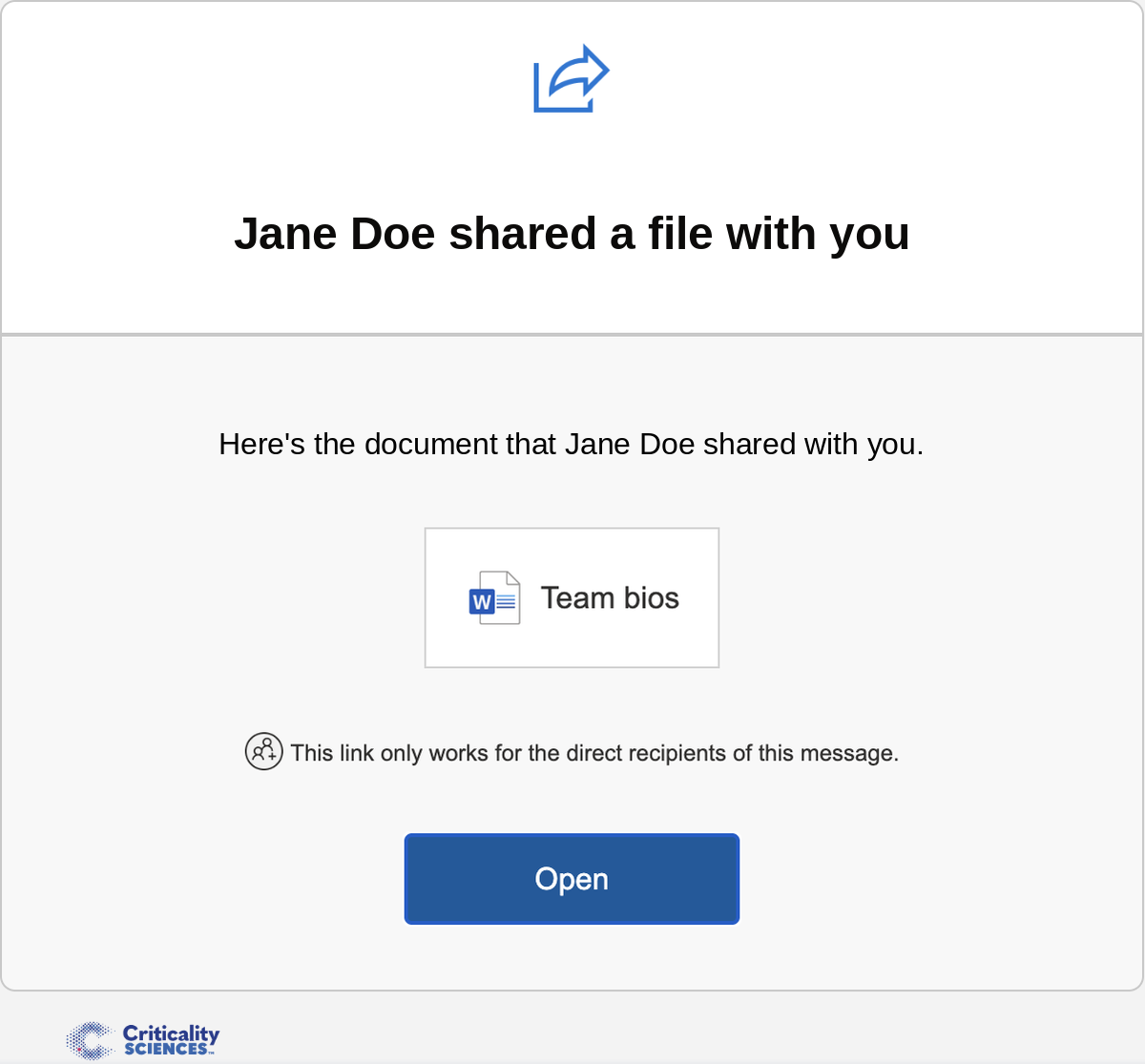
A real share from us looks like this:
- The email comes from the
critsci.comaddress of the person who shared with you. - The email says “[Name] shared a file with you” (or “a folder”) and has an Open button.
- The link works only for the people it was sent to. If a colleague needs the file too, ask us to share it with them.
- The link opens a page at
criticalitysciencesinc.sharepoint.com. - Sign-in starts at
login.microsoftonline.com, on a page that shows the Criticality Sciences logo.
Show screenshot: the sharing email
We never ask for your password by email. If something looks wrong, don’t sign in; forward the email to security@critsci.com.
Sign in
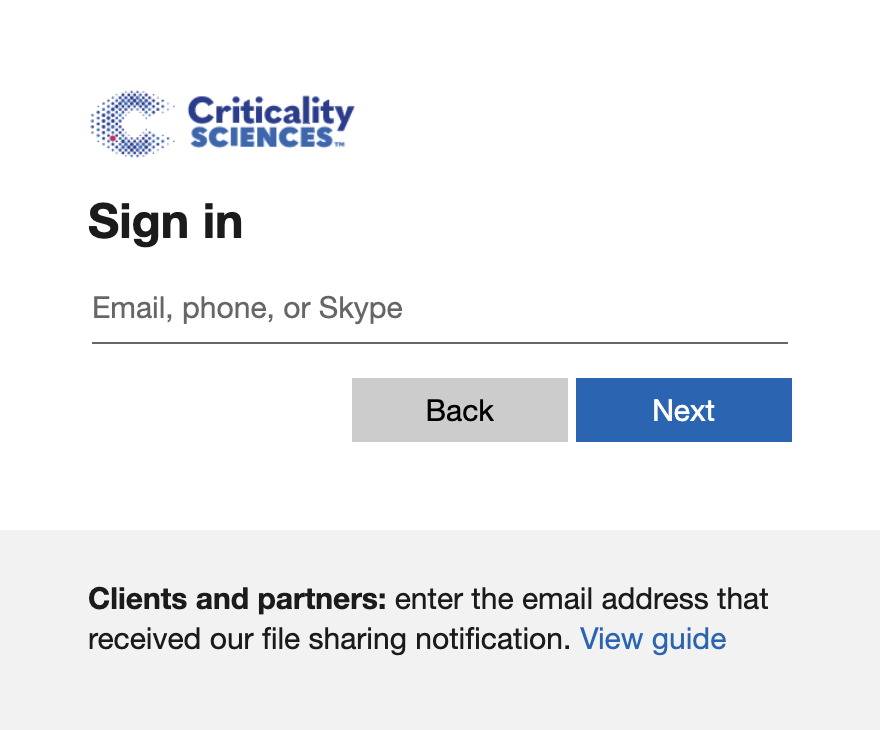
Select Open in the email. On the sign-in page, enter the email address the invitation was sent to. What happens next depends on that address.
- A work or school Microsoft account
- If your organization uses Microsoft 365, sign in as you normally do. We honor your organization’s two-step verification, so you may not need to do anything further.
- A personal Microsoft account
- For example, Outlook.com or Hotmail. Sign in with that account. Microsoft takes you to its own sign-in pages at
login.microsoft.comorlogin.live.com. These show the Microsoft logo instead of ours. Then it brings you back. - Any other address
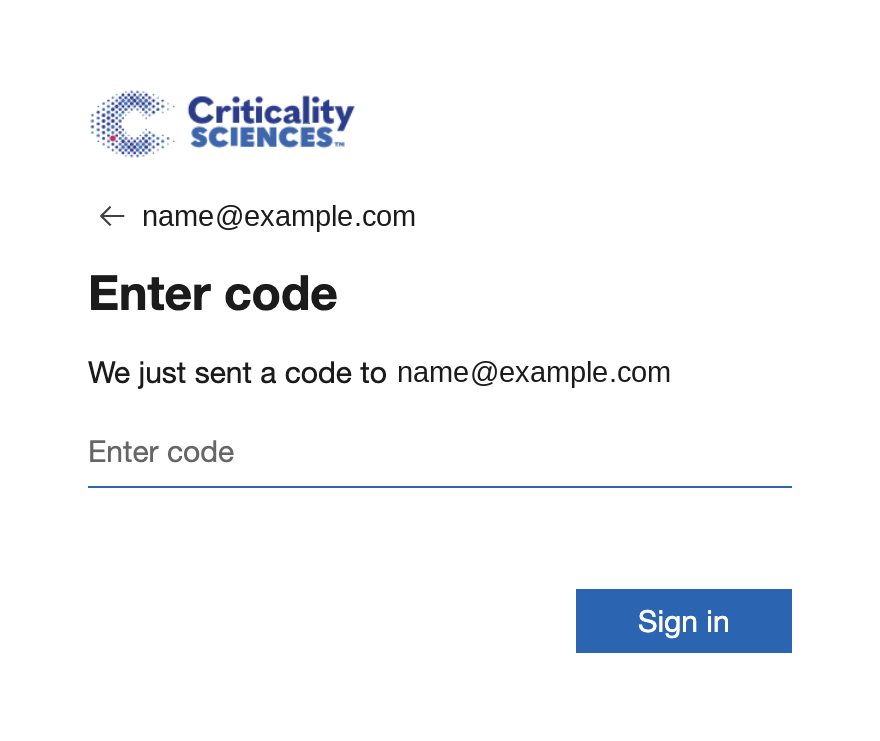
- For example, Gmail. You will be emailed a one-time code. Enter it on the “Enter code” page. If the code doesn’t arrive, check your spam or junk folder.
Show screenshot: the sign-in page
Show screenshot: entering the one-time code
First time only
The first time you sign in, you’ll see up to three extra screens.
-
Accept the permissions request
The screen says “Permissions requested by: Criticality Sciences, Inc.” Accepting this allows us to see your name and email address and keep a record of your activity in our files. Select Accept.
Show screenshot: the permissions request
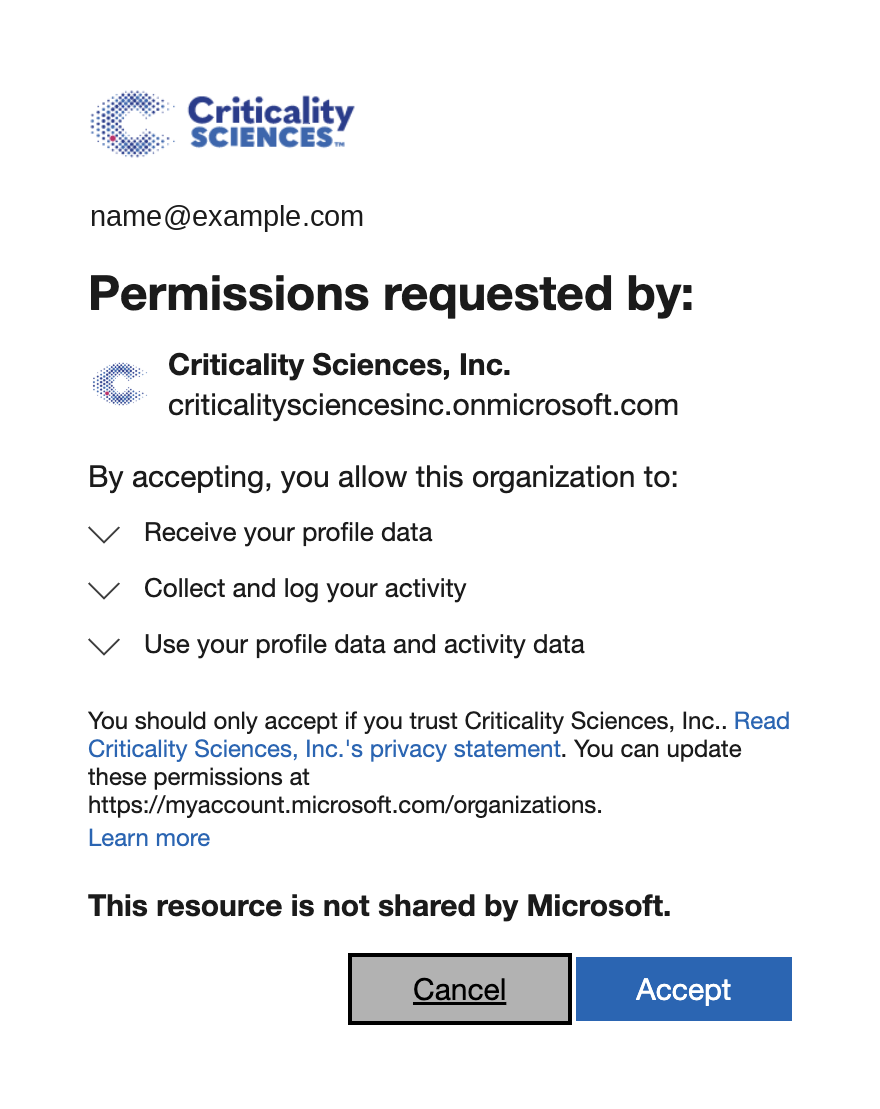
The permissions request. Select Accept. -
Set up two-step verification, if asked
You may see a screen that says “Let’s keep your account secure.” If you do, select Next, then:
- Install the Microsoft Authenticator app on your phone.
- Use the app to scan the QR code on the screen.
- Approve the test notification the app sends you.
- When you see “Authenticator Added,” you’re done.
From then on, you’ll approve a notification on your phone when you sign in.
During setup, your account name may look odd, like
name_example.com#EXT#@CriticalitySciencesInc.onmicrosoft.com. That’s normal. It’s how Microsoft labels guest accounts.Show screenshot: “Let’s keep your account secure”
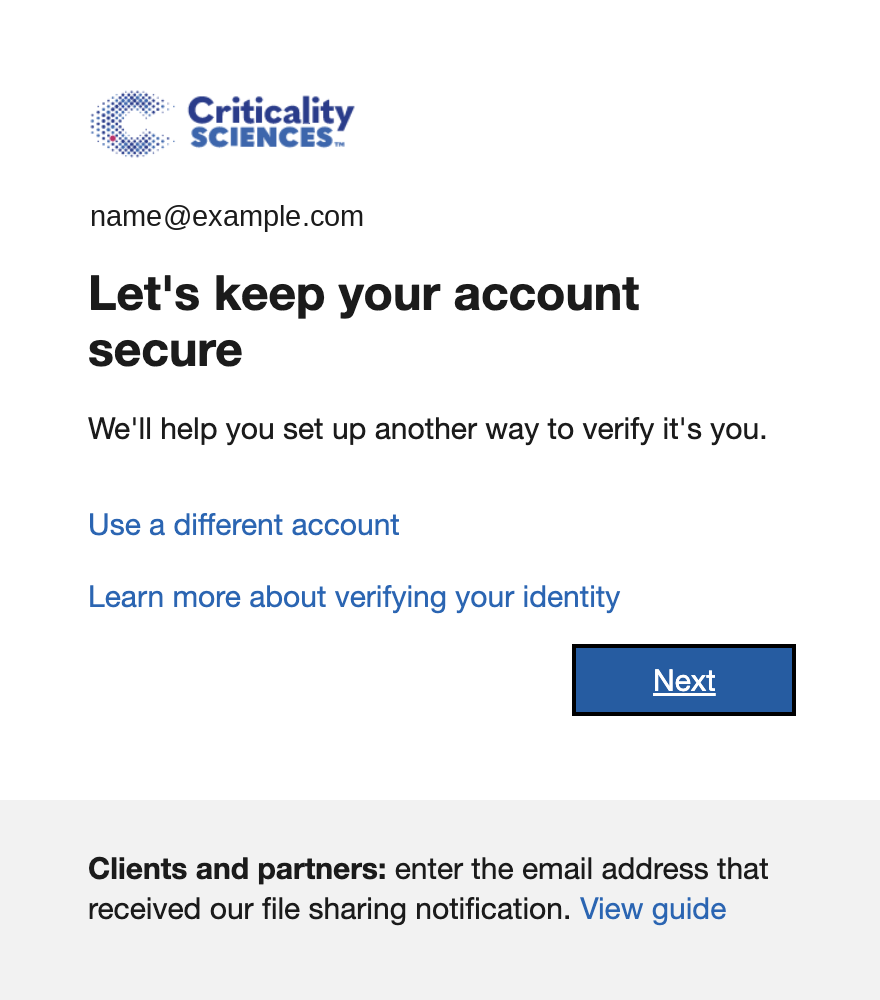
The start of two-step verification setup, with our note for clients and partners at the bottom. Show screenshot: installing the app
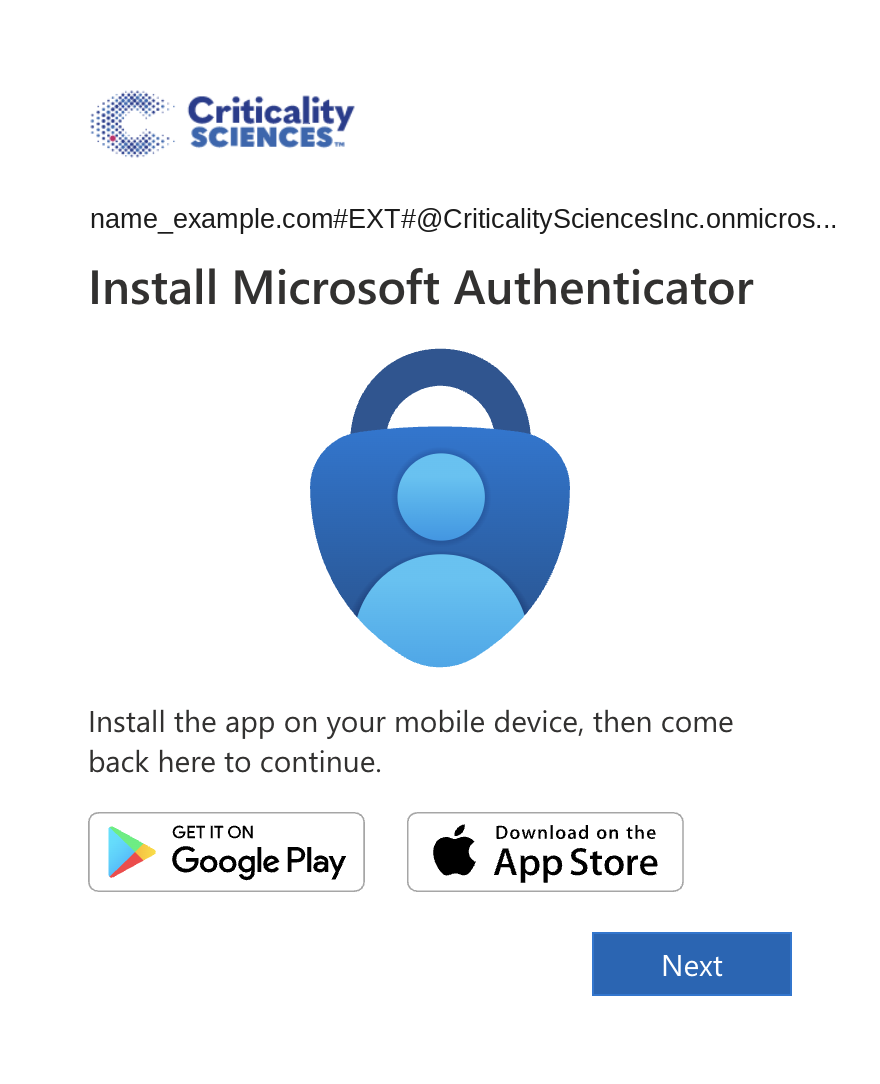
Install the app on your phone, then come back and select Next. Show screenshot: scanning the QR code
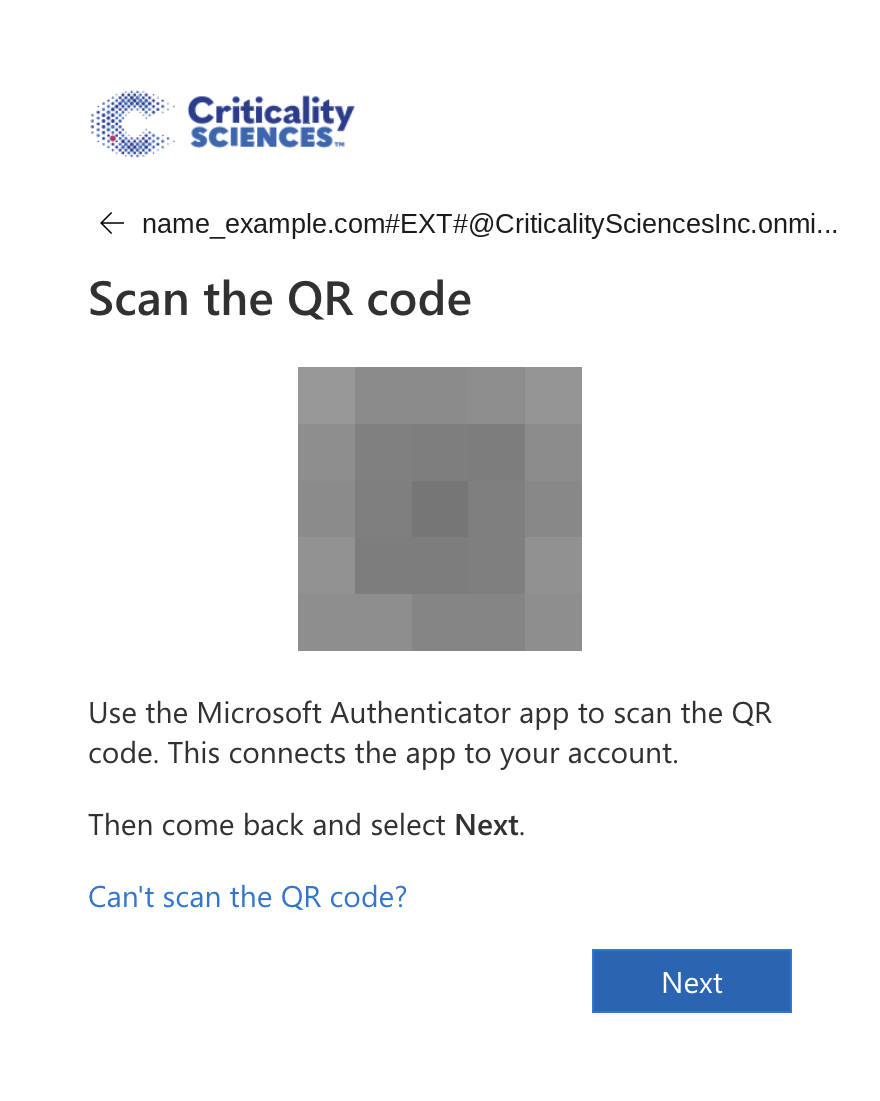
We blurred the QR code in this picture. Yours will be a normal QR code. Show screenshot: “Authenticator Added”
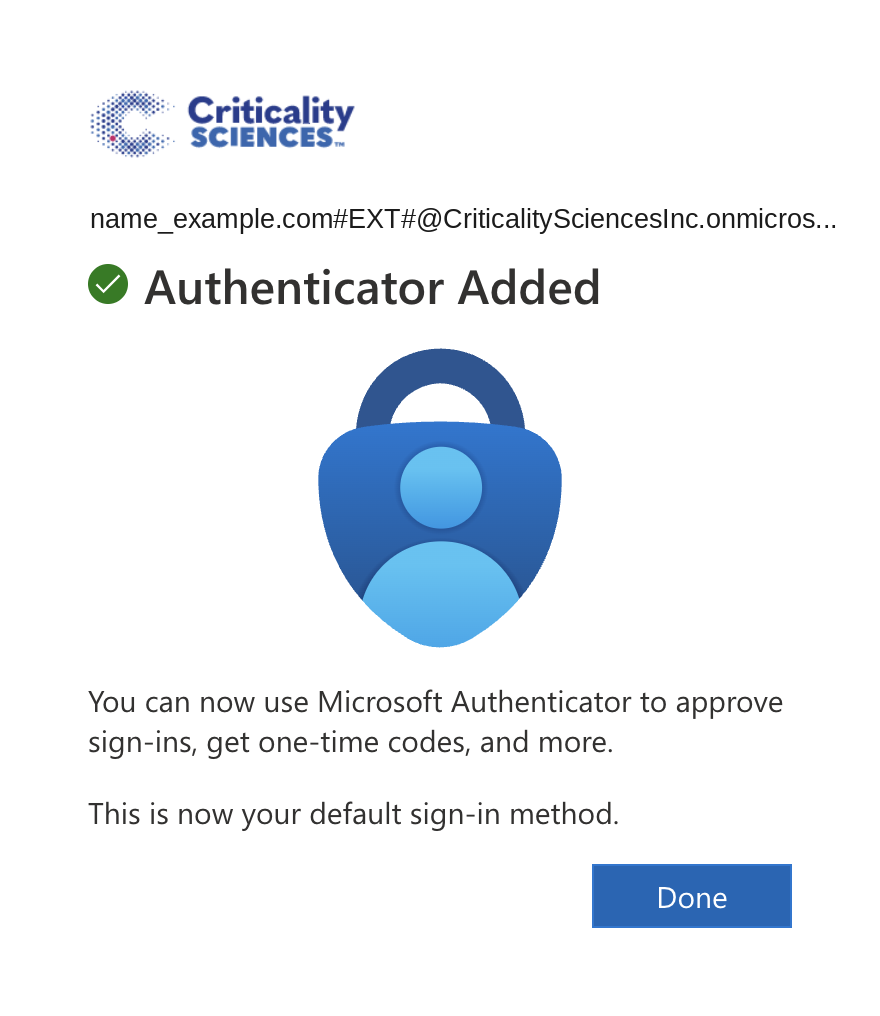
Setup is finished. Select Done. -
Accept the terms of use
Select “Acceptable Use Policy” to open it and read it. Then select Accept.
You may be asked to accept again from time to time, for example when the terms change.
Show screenshot: the terms of use
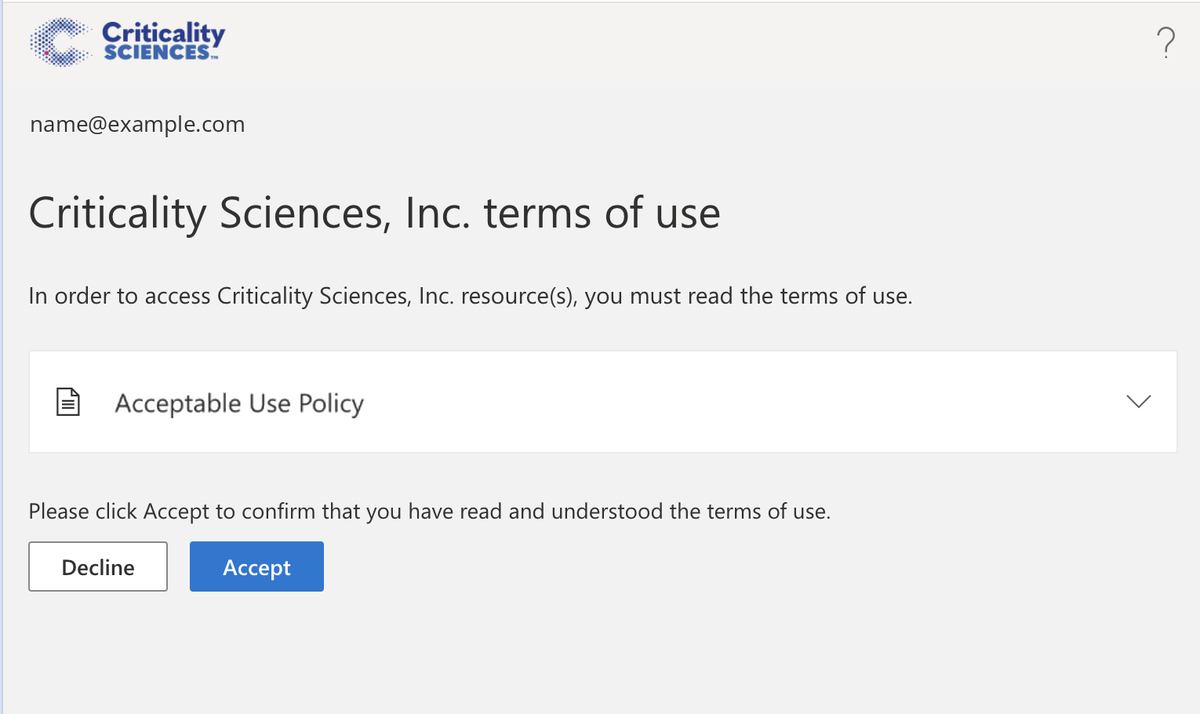
Open “Acceptable Use Policy” to read it, then select Accept.
Next time
Open the link and sign in, with a code or your usual account. Approve the Authenticator notification if you’re asked to. That’s all.
You’ll be asked to sign in about every 12 hours when accessing files in our system.
What you can do
- View and edit in your browser
- You can view files in your web browser, including on a phone. You can edit Office files if they were shared with you for editing. The Office apps can’t open our files, so use the browser.
- Send us files
- If we shared a folder with you for uploads (for example, one named “Inbound”), open the folder link. Then drag your files in, or use Upload. Please use that folder link rather than email attachments.
- Downloading, printing and syncing are off
-
These are turned off for files we share. Office files show a yellow banner that says so. “Your organization” in that banner means our settings, not yours.
If a file shows no preview, ask your contact at Criticality Sciences.
Show screenshot: the yellow banner

The banner reads: “Your organization doesn’t allow you to download, print, or sync using this device…” - Access lasts 30 days
- After 30 days your access expires. Ask your contact at Criticality Sciences to renew it.
If something goes wrong
- “Something went wrong… Please click the invitation or sharing link you received to try again”
-
This usually appears right after first-time setup. Go back to the email and select the link again.
Show screenshot: “Something went wrong”
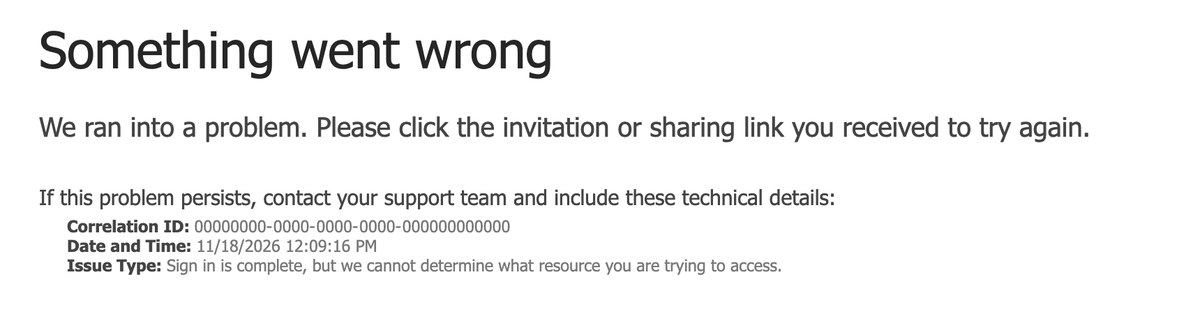
If you see this, open the link in the email again. - You’re signed in with the wrong account, or you see “you need access”
- Open the link in a private or incognito window. Sign in with the email address the invitation was sent to.
- The code didn’t arrive
- Check your spam or junk folder. Codes expire, so if it has been a while, request a new one.
- “Access denied” on a PDF or image
- Tell your contact at Criticality Sciences.
- You have a new phone, or lost the Authenticator app
- Ask your contact at Criticality Sciences to reset it.
- Your access expired
- Ask your contact at Criticality Sciences to renew it.
Still stuck?
Ask your contact at Criticality Sciences, the person who shared the file with you. Or email security@critsci.com.